Sep 15, 2026
The Founder's Figma Playbook: Design and Test Your Product Before You Build
The Mistake: Building First, Finding Out Later
Here is how a lot of products die. A founder has an idea, feels the urgency, and jumps straight into building it — hiring developers or writing code for months. Then it ships, and customers shrug. Now changing it means rewriting code, which is slow and expensive, so the founder is stuck with a product nobody quite wanted. The other version of this: the founder can't build yet, so the idea stays trapped in their head, impossible to show a developer, an investor, or a customer.
The founders who avoid both traps do one thing first: they design and test the product in Figma before a single line of code gets written. Figma is a browser-based design tool where you can lay out every screen, link them into something that feels like a real app, and put it in front of real people — in days, for free or nearly free. Changing a Figma design takes minutes. Changing shipped code takes weeks. That difference is the whole point.
This is the practical playbook for how founders actually use Figma to design great products — the exact workflow, the AI features worth using, and the one mindset that separates a useful Figma file from a pretty waste of time.
The One Mindset That Matters
Before the steps, internalise this, because it's where most founders go wrong: Figma is not for making prettier mockups. It's for testing ideas cheaply before you commit real money to building them. A beautiful, polished prototype can hide the fact that nobody actually wants the thing — it's easy to produce convincing fiction in Figma and mistake it for progress. So as you design, keep asking the only question that matters: have I put this in front of a real potential customer, and did they get it? Design to learn, not to impress. Everything below serves that.
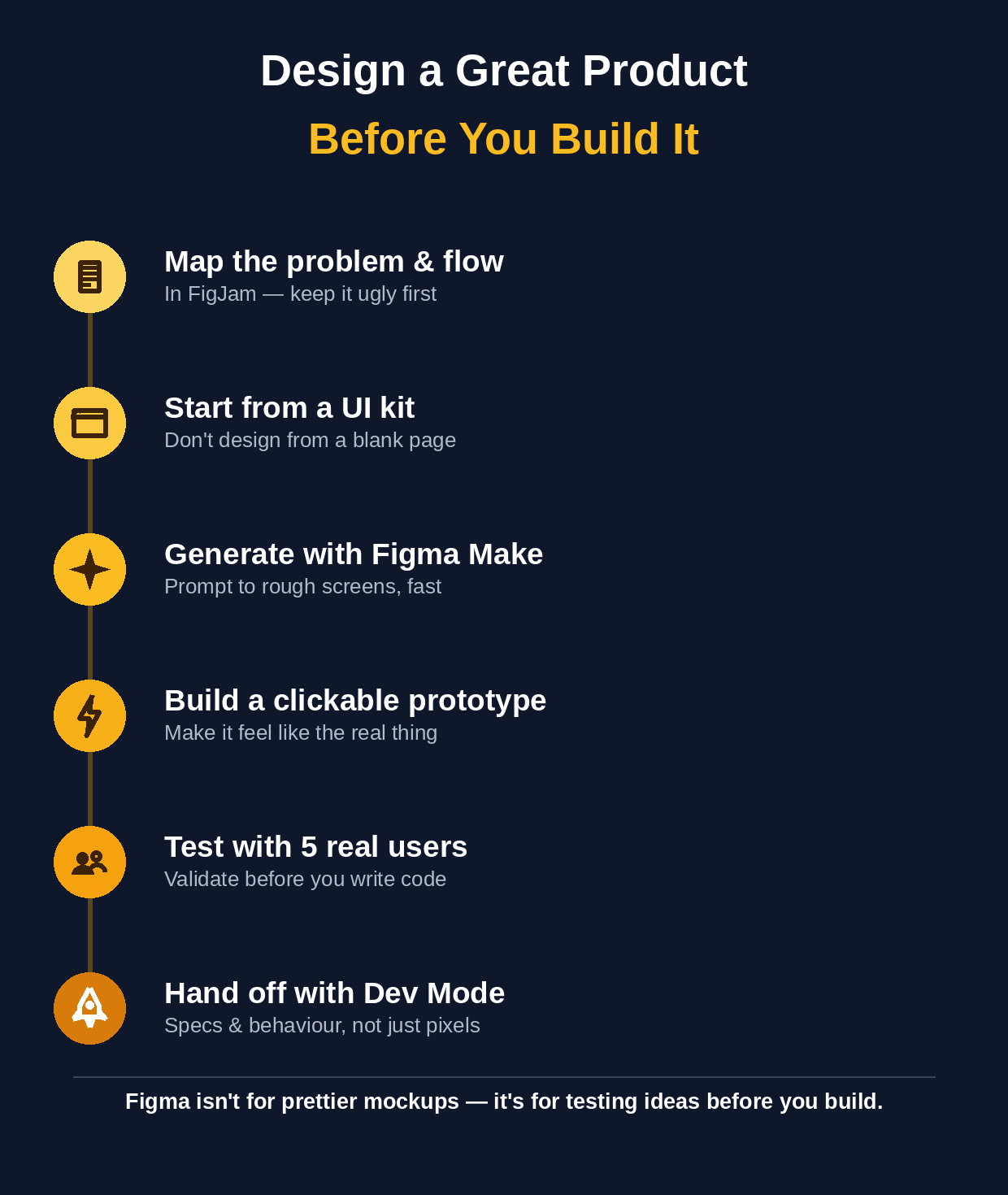
The founder's Figma workflow — from the problem to a dev-ready, tested design.
The Founder's Figma Workflow, Step by Step
1. Map the problem and the flow first — Before any screens, open FigJam (Figma's whiteboard) and write down the customer problem, how they solve it today, and the core flow — the steps a user takes to get value. Keep it ugly: boxes and arrows. This forces you to design the right thing before you make anything look good.
2. Start from a UI kit, not a blank page — Do not design from scratch. Grab a free UI kit or template from the Figma Community (there are thousands) that's close to what you need. You'll move ten times faster building on proven components than drawing buttons and menus yourself.
3. Generate rough screens with Figma Make — Use Figma's AI to get a first draft fast. Type a prompt like 'a dashboard for a fitness app with a weekly step chart and a recent workouts list,' and Figma Make (or Make Designs) generates a starting layout. Treat it as clay, not the final product — it's for getting something on screen to react to, quickly.
4. Build a clickable prototype — Link your screens together so tapping a button actually moves to the next screen. This turns static pictures into something that feels like a real app — which is what makes a proper test possible. In Figma this is a few clicks, no code.
5. Test it with about five real users — This is the step that pays for all the others, and the one founders skip. Put the prototype in front of five people who match your target customer and watch them use it — silently. Where they hesitate or get confused is your product's real problem list. Five users will surface the vast majority of the issues. Fix them in the design, before they're baked into code.
6. Hand off to developers with Dev Mode — When the design is validated, use Figma's Dev Mode to hand it to developers — it gives them exact measurements, colours, assets, and code references. Crucially, add the behaviour a screen can't show on its own: what happens on loading, on an empty state, on an error, on mobile. A pretty screen without these rules just creates expensive guesswork later.
A Note on Figma's AI (and Its Limits)
Figma in 2026 is a whole suite — Design, FigJam, Dev Mode, Figma Make, and more — and its AI genuinely speeds up the early, tedious parts: generating first-draft screens, naming layers, finding assets. Use it for exactly that: getting to a testable prototype faster. But be clear on the limit — Figma Make's output is great for inspiration and testing, not production-ready code, and no AI feature replaces the two things that actually make a product great: understanding the customer, and testing with them. AI gets you to the test faster. It doesn't pass the test for you.
What to Do This Week
Pick the one core thing your product must do — the single flow that delivers the main value — and design just that in Figma this week. Open FigJam and sketch the steps. Grab a UI kit from the Community that fits. Use Figma Make to generate the three or four screens that flow needs. Link them into a clickable prototype. Then do the part that counts: send it to three people who'd actually use it and ask them to try it while you watch. You'll learn more about your product in those three sessions than in three months of building blind — and it'll have cost you a few days and nothing else.
From a Great Design to a Shipped Product
Designing and validating a product in Figma is the smart first move. The harder part comes next: turning that validated design into a real, working product — the engineering, the AI features, the infrastructure — without it taking a year or a team you don't have yet. That gap, between a great Figma file and a live product in customers' hands, is where a lot of founders stall.
That's the part Wedigtech handles — taking a validated design and building and shipping it as a real product (AI features included), fast. If you've got a design or an idea that's tested well and you want to see what it would take to actually build it, that's a short conversation worth having — you can book a call and we'll map it out with you.
Was this helpful?
Ready to architect your next stage of growth?
Partner with wedigtech and turn ambition into compounding, measurable outcomes.
More from Insights
View All

20 AI Agents for a Founder's Daily Department Reporting
20 AI agents that report a founder's daily numbers from every department: sales, marketing, finance, product, support, operations and people, rolled into one morning brief.
Read More
Your Second COO Is AI: How D2C Brands Run Operations on Autopilot
Every D2C founder is secretly the COO — running inventory, support, fulfilment and reporting in the gaps. Here's how AI becomes your second COO: watching the business 24/7, flagging problems early, and running the operational busywork.
Read More
100+ AI Tools for Services Businesses (Organized by Use)
A categorised directory of 100+ AI tools for services businesses — for proposals, CRM, scheduling, delivery, support, finance, marketing and more — with what each one is best for.
Read More