Sep 24, 2026

How to Implement Project Management in ClickUp (Founder's Step-by-Step Guide)
Why Most Founders Open ClickUp and Give Up
Here's the usual story. A founder realises the business is running on scattered spreadsheets, Slack messages, and their own memory, so they sign up for ClickUp. They open it, see a blank workspace with endless options, get overwhelmed, set up something half-baked, and quietly go back to the chaos a week later. The tool wasn't the problem. The setup was.
ClickUp is powerful precisely because it's flexible, but that flexibility is what trips founders up: with infinite options and no clear starting point, most people over-build a system nobody follows, or under-build and get no value. This guide fixes that. It's the exact, opinionated setup to implement project management in ClickUp — six steps kept deliberately simple — and then how to unlock its real power with ClickUp Brain and AI agents once the basics are in.
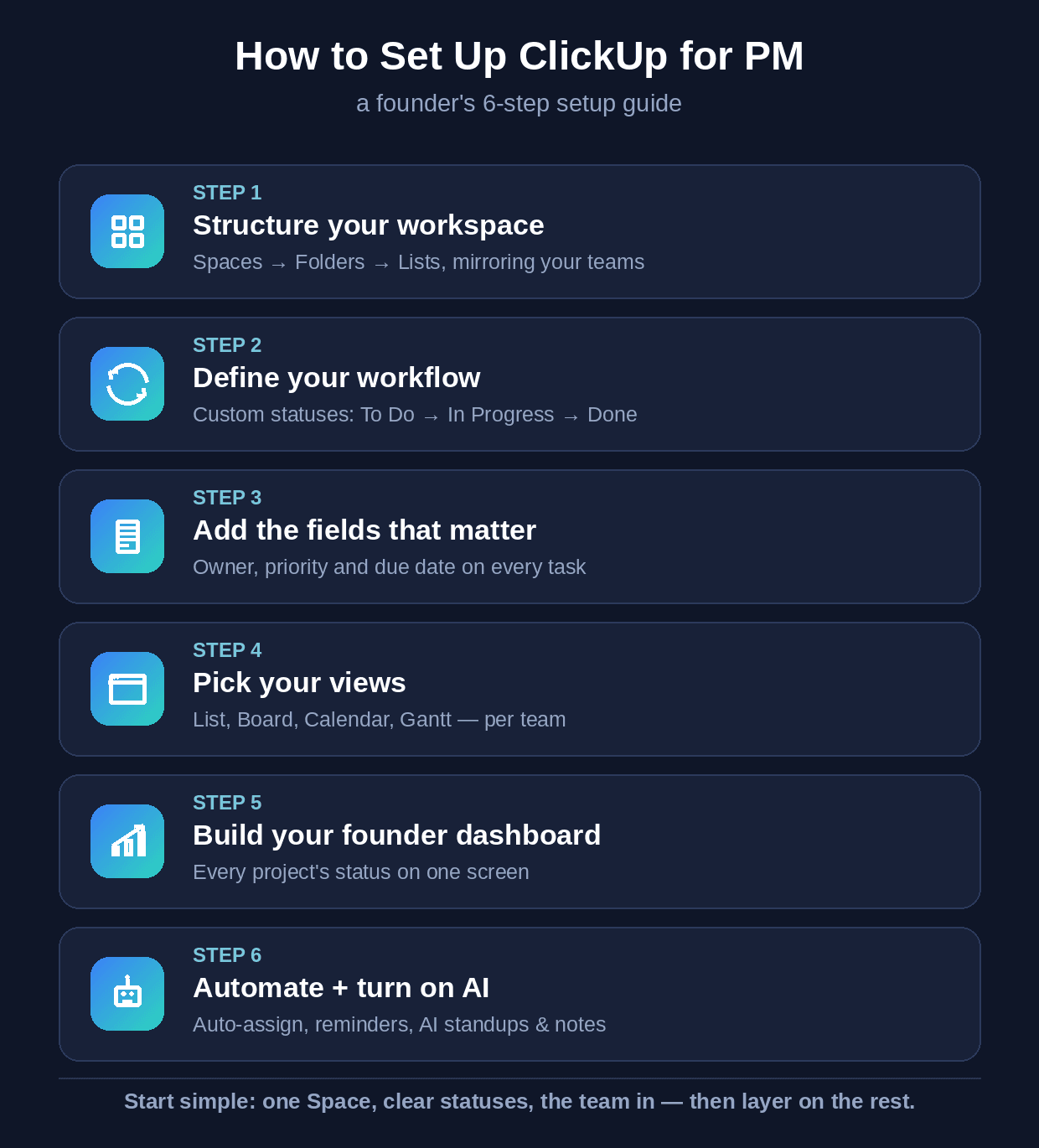
The founder's ClickUp setup — six steps, in order, from structure to AI.
The 6-Step Setup
Step 1 — Structure your workspace. ClickUp is organised as Spaces → Folders → Lists → Tasks. Create a Space for each major team or area, Folders for big initiatives, and Lists for individual projects. Keep it flat and obvious — a structure that mirrors how you actually talk about your work is what people will use.
Step 2 — Define your workflow. Set custom task statuses that match how work really moves — for most, To Do → In Progress → In Review → Done. Don't create fifteen; three to five is right for almost everyone starting out.
Step 3 — Add the fields that matter. On every task: an owner (one person accountable), a priority, and a due date. Make them non-negotiable. This turns vague to-dos into accountable, trackable work — and it's what your dashboard and AI will read from.
Step 4 — Pick your views. Each team uses the view that fits: List for detailed work, Board (Kanban) for workflow at a glance, Calendar for deadlines, Gantt/Timeline for projects with dependencies. Set the default per List; don't force everyone into one format.
Step 5 — Build your founder dashboard. Build a Dashboard that pulls from your tasks to show what's in progress, what's overdue, who's overloaded, and each project's status — on one screen that updates itself. Now you check one page instead of chasing five people.
Step 6 — Automate the basics. Set automations for the repetitive moves: auto-assign tasks by List, notify an owner when a task is ready, nudge overdue items. This removes the manual admin that makes people abandon a tool.
Why ClickUp Brain Is the Real Power-Up
Everything above gives you an organised workspace. ClickUp Brain — its built-in AI layer — is what turns that organised workspace into an active assistant, and it's the single biggest reason to use ClickUp over a basic task tool. The key is that Brain can see everything in your workspace, so it works with real context instead of generic answers. And it only gets this powerful because you did steps 1-5 first: clean, structured data is what makes the AI accurate.
Here's what makes it a genuine power-up for a founder:
- Ask your workspace anything. Type a plain question — 'what's the status of the launch?', 'who owns the website?', 'what did we decide last week?' — and Brain answers instantly from your real tasks, docs, and comments. No more digging or chasing people.
- Your standups and reports write themselves. Brain compiles what everyone worked on from tasks and activity, so status updates and standups are generated automatically instead of eating your team's morning.
- It drafts and summarises from context. It writes project briefs, SOPs, and updates using your workspace context, and condenses long threads, docs, or whole projects into a quick summary.
- Meetings become tasks automatically. The AI Notetaker joins your calls, writes the notes, and turns every action item into a tracked task with an owner and due date — nothing said in a meeting is lost.
- Every top AI model, in one place. Brain gives you GPT, Claude, and Gemini-class models under one subscription, so you don't need separate AI tools.
The payoff is real: teams using ClickUp's AI report saving over a day a week per person and completing tasks about 3x faster, with a Forrester study putting the return at 384% (cited by aigearbase, 2026). For a founder, Brain is what gives you back both visibility and time — it answers, writes, and reports so you don't have to.
Setting Up AI Agents, After the Basics
Once your setup is solid and Brain is on, the next level is AI agents — autonomous AI that acts on its own within rules you set, taking routine oversight off your plate entirely. Do this after the basics, not before, because agents act on your workspace data and rules: a clean setup produces reliable agents; a messy one produces noise.
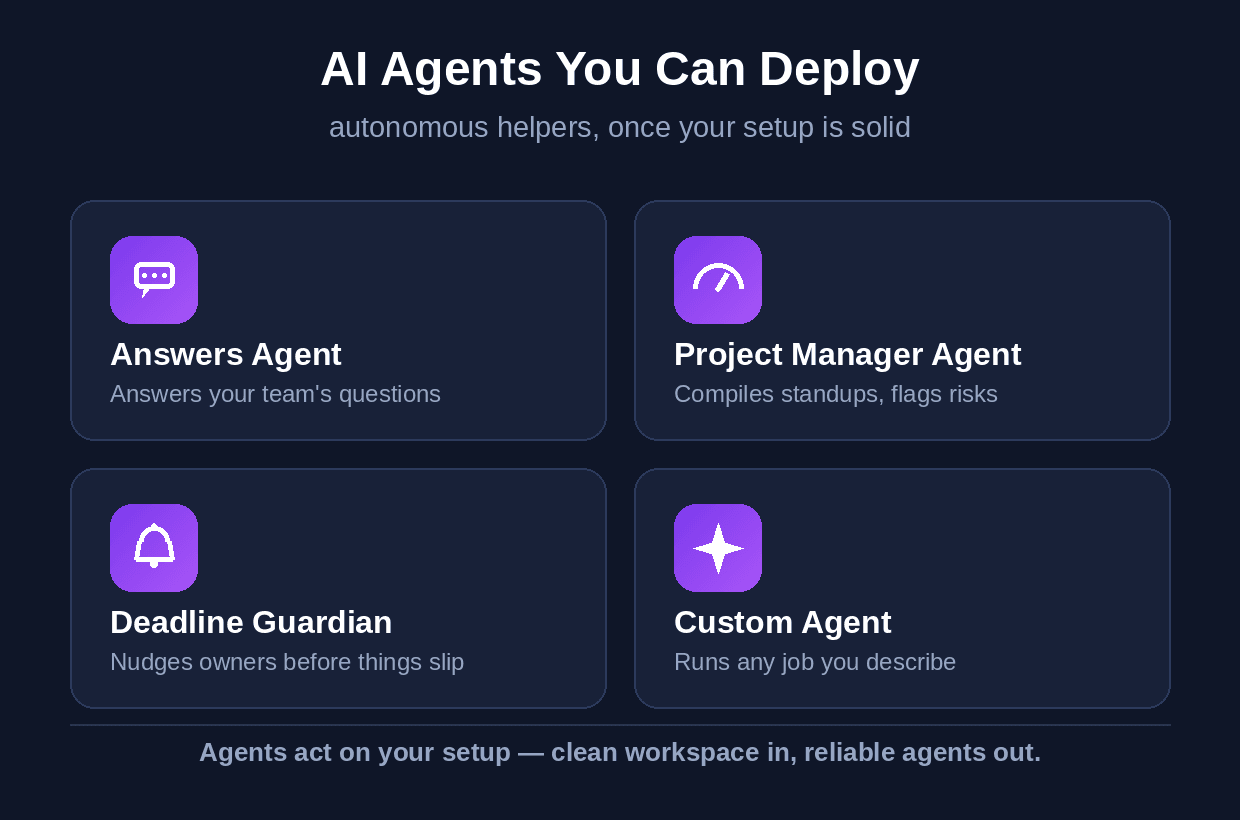
Four AI agents worth deploying once your ClickUp setup is solid.
How to set them up, in practice:
1. Confirm your foundation. Make sure statuses, owners, and due dates are consistent — agents read this data to act. Garbage in, garbage out.
2. Start with a prebuilt agent. ClickUp offers agent templates. Begin with a low-risk one — an Answers agent that replies to team questions from your workspace, or a Project Manager agent that compiles standups and flags stale tasks.
3. Set its scope and rules. Define what the agent watches (which Space or List), what it's allowed to do, and when. Keep the scope narrow at first.
4. Keep a human checkpoint. Let the agent propose and act within limits, but have a person approve the consequential moves until you trust it. Expand its autonomy as it proves reliable.
AI agent | What it does for you |
|---|---|
Answers Agent | Replies to 'where is / what's the status of' questions from your workspace, automatically |
Project Manager Agent | Compiles standups, summarises progress, and flags stale or at-risk tasks |
Deadline Guardian | Watches due dates and nudges owners before things slip |
Custom Agent | Describe a job in plain language and it runs it within your rules |
Start with one agent, prove it, then add more. Between Brain answering and writing, and agents acting autonomously, your ClickUp stops being a passive task list and starts running a real chunk of the operation for you.
The Mistakes That Kill a ClickUp Rollout
Most failed implementations die from the same few errors. Avoid them and you're most of the way there:
- Over-building. A complex hierarchy with fifteen statuses on day one guarantees nobody follows it. Start minimal; add only when a real need appears.
- No single owner per task. If a task is 'the team's,' it's nobody's. One name on every task, always.
- Turning on AI before the setup is clean. Brain and agents are only as good as your workspace data — structure first, AI second.
- Skipping adoption. The best setup fails if the team keeps working in Slack. Get everyone in and make ClickUp the single source of truth.
What to Do This Week
Don't set up everything at once — you'll over-build. Do this: create one Space for your most important team and one List for a live project. Set four statuses, add the three fields (owner, priority, due date), and move every task for that project in with an owner and due date. Get the people involved logging in and updating this week. Once that one List is running smoothly, turn on Brain and try asking it for a status update — then, when you trust the setup, deploy your first agent. Start narrow, prove it, then expand.
Getting It Set Up Right — and Connected to Everything Else
A good ClickUp setup gives a founder back their visibility; Brain and agents give back time. The harder version — configuring it deeply around how your business runs, tuning the agents, and connecting ClickUp to the rest of your stack (CRM, finance, support) so the whole operation reports into one view — is where the real leverage is, and where most founders don't have the time. That's the kind of AI-led operations work Wedigtech does with founders and growing teams.
If you'd like a hand setting ClickUp and its AI up so it actually sticks and saves you time, that's a short conversation worth having — you can book a call and we'll map it to how your business runs.
Was this helpful?
Ready to architect your next stage of growth?
Partner with wedigtech and turn ambition into compounding, measurable outcomes.
More from Insights
View All

AI Onboarding Workflows That Cut Time-to-Value for SaaS
Seven AI onboarding workflows that cut time-to-value for SaaS: personalized paths, auto-import, a done-for-you first result, in-app copilots and behaviour-based nudges that turn sign-ups into activated users.
Read More
How to Automate a Services Business With AI in 2026
How to automate a services business with AI in 2026: the six places to automate across the client lifecycle, the sequence to do it in, and what to keep human.
Read More
20 AI Agents for a Founder's Daily Department Reporting
20 AI agents that report a founder's daily numbers from every department: sales, marketing, finance, product, support, operations and people, rolled into one morning brief.
Read More